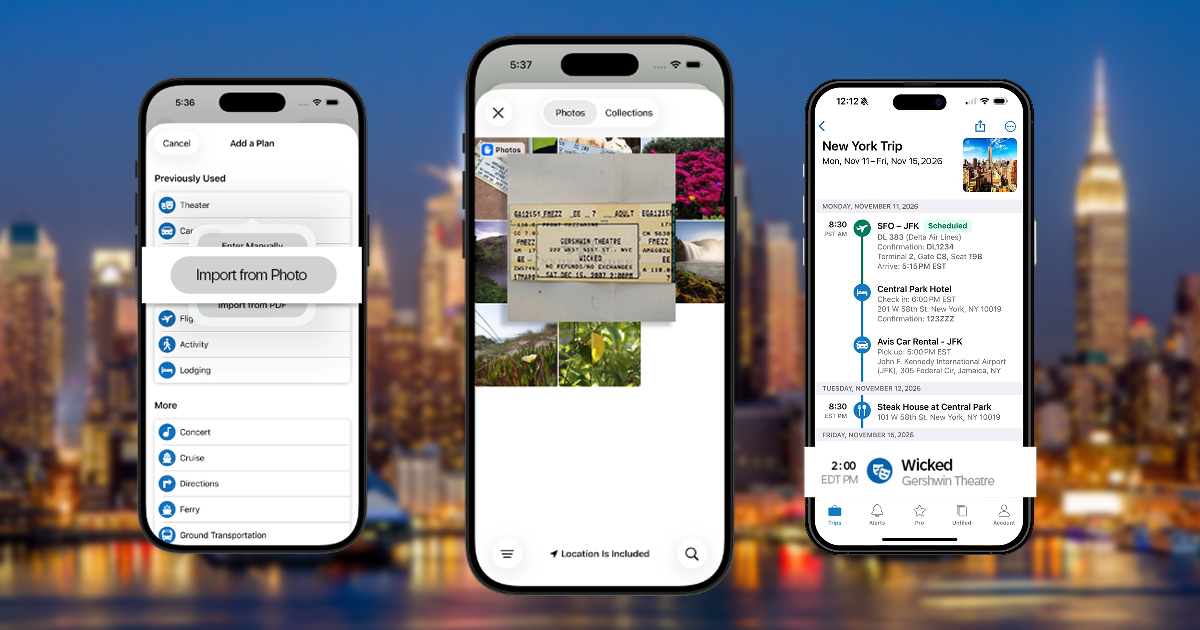
Your travel plans don’t always arrive in a neat confirmation email. Sometimes they’re a screenshot. Or a PDF. Or a photo of a ticket. And sometimes those plans don’t parse exactly the way you thought they would in TripIt (peep that Unfiled tab in your app).
We hear you—and we’re excited to share some game-changing updates.
TripIt Pro subscribers now have access to two new Apple Intelligence-powered functionalities in the app: creating a plan from an Unfiled Item, and turning photos or PDFs (like tickets or receipts) into organized plans.
Let’s take a closer look.
How does Apple Intelligence help with an Unfiled Item?
Let’s start with organizing your Unfiled Items.
Picture this: You’ve forwarded a booking confirmation email to plans@tripit.com, but instead of flowing to an itinerary, TripIt creates an Unfiled Item. TripIt can support nearly all confirmation emails, but there are still some boutique hotels and restaurants, smaller regional travel businesses, and other niche vendors not yet supported by TripIt.
But now, thanks to Apple Intelligence in the TripIt app, TripIt Pro subscribers have an easier way to add an Unfiled Item to an itinerary.
Here’s how to do it:
- Open the TripIt iOS app and navigate to Unfiled Items.
- Select the Unfiled Item.
- Tap “Populate with Apple Intelligence.”
- Select the plan type (e.g., lodging or restaurant).
- TripIt then uses Apple Intelligence to analyze the Unfiled Item text, extract plan details, and populate the plan with the extracted information—labeling the plan as “powered by Apple Intelligence.”
- Review the information, edit if necessary, and tap "Save."
- Select an upcoming trip or create a new trip to add the plan to.
How can I turn an image into a plan with TripIt Pro?
Next, let’s dig into Image to Plan: a brand new, flexible way to capture plans, helping travelers keep every detail of their trip in one place.
With Image to Plan, TripIt Pro subscribers can turn photos or PDFs into organized plans in just a few taps. Using Apple Intelligence’s on-device foundation models, TripIt securely extracts key details like dates, times, locations, confirmation numbers, and costs, all without any data leaving the device.
Simply choose an image from Photos or PDF from Files and share it with TripIt using the iOS share button and then selecting the TripIt app. Or, start with “Add a Plan” from the trip in TripIt, then select “Import from Photo” or “Import from PDF” and select the item. Apple Intelligence then extracts the pertinent information and creates a plan with the details.
That means a more complete itinerary and fewer missing pieces, all in one place. Because whether it’s a screenshot of concert tickets or a PDF for a ferry ride, if it’s part of your trip—it belongs in TripIt.
What’s unique about the Image to Plan functionality?
Image to Plan sets TripIt apart by using on-device iOS foundation models to turn images and PDFs into structured itinerary items—no email parsing or manual entry required.
Unlike many competitors that rely primarily on confirmed bookings via email or limited import tools, TripIt accepts a wider range of plans from countless vendors, more languages, and local/regional providers (e.g., event, ferry, parking, or receipts) simply by capturing an image. This delivers broader coverage and greater flexibility for real-world travel needs.
While some apps offer basic Optimal Character Recognition (OCR) import features, TripIt’s seamless iOS share-to-plan workflow and Apple Intelligence foundation models make it uniquely easy and private, giving travelers a richer, more complete itinerary experience.
FAQ
Q: What is Apple Intelligence?
A: Apple Intelligence is a personal intelligence system developed by Apple that integrates generative AI into iOS 18, iPadOS 18, and macOS Sequoia to enhance productivity and creativity.
Q: What devices are eligible for Apple Intelligence?
A: Apple Intelligence is compatible with devices equipped with specific, high-performance Apple Silicon chips (A17 Pro and later, or M1 and later) that have enough RAM to run on-device models. This includes iPhone 15 Pro and later, running iOS 26 (plus iPadOS 26 and macOS 26) and above.
Q: What if I’m unsure I want to use Apple Intelligence with TripIt?
A: We have you covered there, too. TripIt offers a setting that allows you to continue using Apple Intelligence on your device, just not with TripIt.
Here's how:
- In the TripIt app, go to Account > Settings.
- Under Artificial Intelligence, select "Apple Intelligence.”
- Toggle the setting off.